How to keep Claude always on top on macOS
Updated July 2026 · Disclosure: written by the maker of Sticky for Claude. The comparison is factual anyway.
You're writing, coding or designing, and you want Claude to stay visible in a corner while you work. Simple request, and yet: the official Claude desktop app has no always-on-top setting. Click into your document and Claude disappears behind it. When a bug once made the official app stay on top by accident, users reported it as an issue. So here are the three real ways to pin Claude above your other windows on a Mac in 2026.
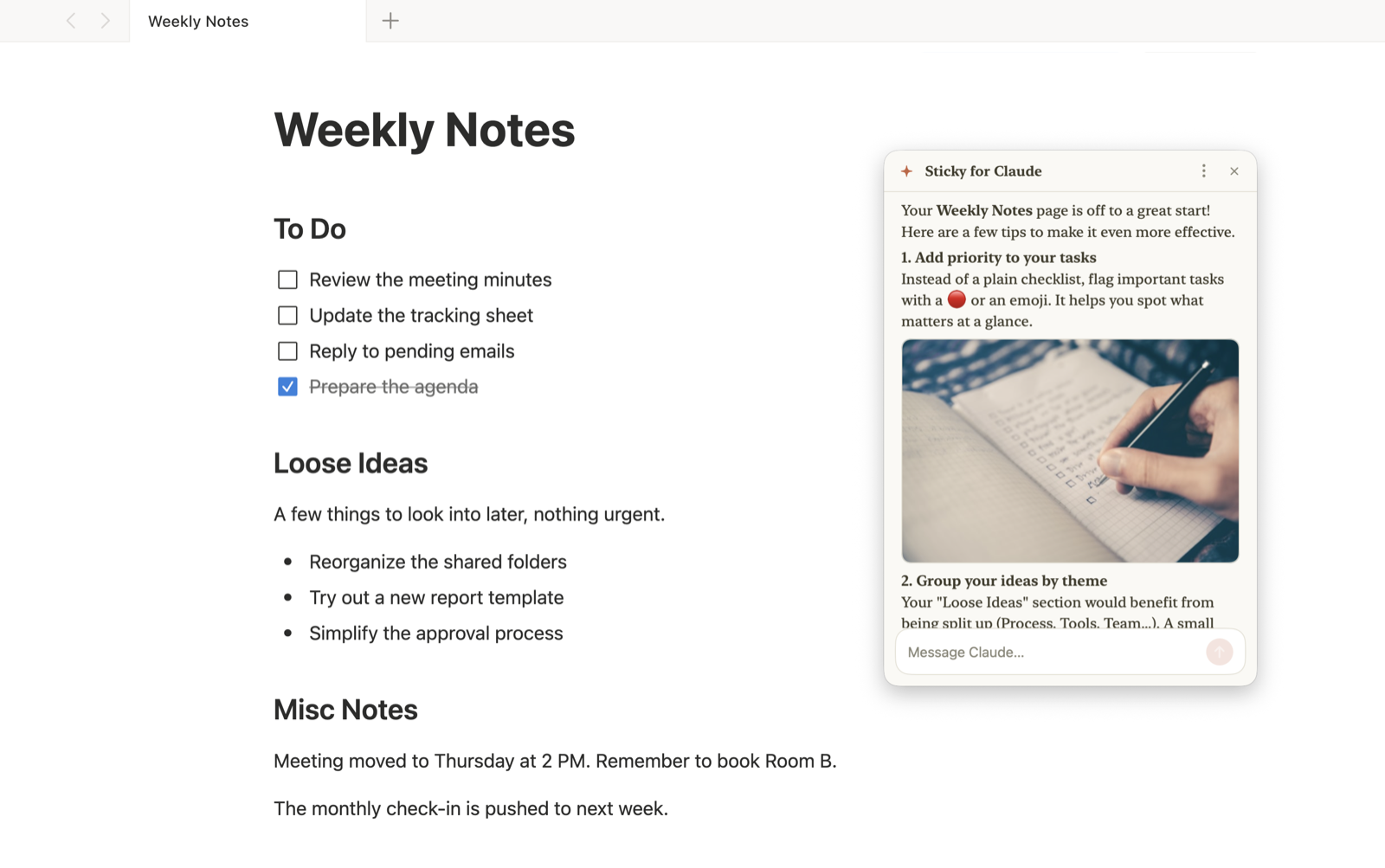
Way 1: a generic window pinner (works on the desktop, dies in fullscreen)
Utilities in the Floaty family can pin a window, or a browser tab running claude.ai, above other windows. On a regular desktop this works fine for casual use.
Two limits to know about. First, you're pinning a whole browser window, with its tabs and toolbars. Second, and this is the deal-breaker for many: pinned windows do not survive true fullscreen. macOS gives every fullscreen app its own Space, and a normal window simply is not there, whatever its window level. The moment you go fullscreen in your IDE or in Pages, your pinned Claude vanishes.
Way 2: window tiling (no pinning, but built in)
macOS Split View and window tiling let you park Claude next to one app. Nothing is "on top": both apps share the screen. It's honest and free, but Claude now occupies a third or half of your display, and switching the other half breaks the layout. Good for a long working session with exactly two apps; not an "always visible" solution.
Way 3: Sticky for Claude (always on top, even true fullscreen)
Sticky for Claude was built for exactly this search query. It puts Claude in compact sticky-note windows that use the same window layer as Spotlight. That layer joins all Spaces and is allowed to appear with fullscreen windows, so Claude stays visible everywhere: over your fullscreen IDE, over Figma, over a movie. No screen-recording permission, no hacks.
- Every window is always on top, on every Space, including true fullscreen
- Windows auto-fade when idle so they never block your work; hover brings them back
- Double-tap ⌘ summons or hides all windows from anywhere
- Each window can be a Claude chat, a full Claude Code session pinned to a project folder, or a real terminal
- Uses your existing Claude subscription (Pro/Max) or API key; chats stay local, no account
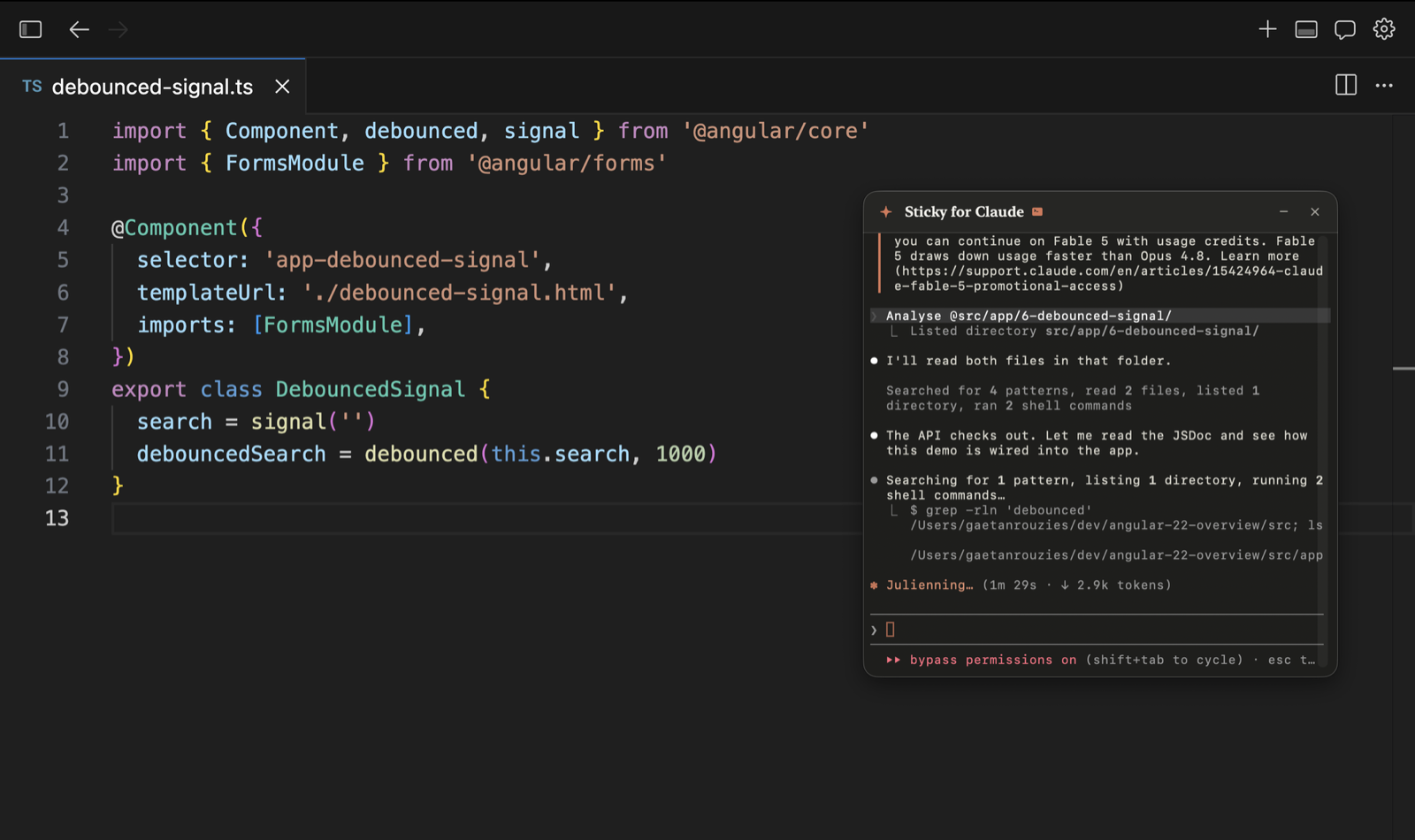
The three ways at a glance
| Window pinner + claude.ai | Split View / tiling | Sticky for Claude | |
|---|---|---|---|
| Always on top (desktop) | Yes | No, side by side | Yes |
| Survives true fullscreen | No | No | Yes |
| Compact footprint | Full browser window | Half the screen | Sticky notes, auto-fade |
| Claude Code support | Chat only | Whatever app you tile | Full sessions + terminal mode |
| Price | ~$5–20 | Free (built in) | $29 one-time (7-day free trial) |
Keep Claude on top of everything
7-day free trial · all features · no account, no card · macOS 14+, Apple Silicon
↓ Download Sticky for ClaudeFrequently asked
Why can't the Claude desktop app just stay on top?
The official app uses a standard window, and Anthropic has not shipped an always-on-top option. Regular windows also cannot cross into fullscreen Spaces. An overlay needs the special panel behavior Apple designed for auxiliary windows, which is what Sticky for Claude uses.
Does keeping Claude on top require screen recording or accessibility permissions?
Not with Sticky for Claude: the floating uses public AppKit window flags, the same technique as Spotlight. Only the optional double-⌘ gesture asks for Accessibility, because it listens for the ⌘ key system-wide.
Can I have several always-on-top Claude windows at once?
Yes, unlimited: one per project or topic, each a chat, a Claude Code session or a terminal. See multiple Claude windows on your Mac.
Related: Multiple Claude windows on your Mac · Every floating-AI option on macOS · Sticky for Claude vs the official desktop app